
Connect HubSpot to Alfred
Last updated: July 21, 2026
Alfred brings your HubSpot companies, deals, owners, and logged sales activity into your workspace, so every rep walks into a meeting with what is actually happening in the pipeline. One admin connects once, and the whole team gets the benefit.
What you need
- An Alfred account with an admin or owner role. Only admins can connect a CRM.
- A HubSpot account with permission to install apps and grant the requested access.
What Alfred reads
Alfred requests read access to:
- Companies, to match them to accounts in Alfred.
- Deals, open and past, with stage, amount, and owner.
- Owners, to map each deal to the right rep.
- Sales email and activity: logged emails, calls, and notes, imported as deal activity.
- Contacts, to match the people on each deal, including meeting attendees.
What Alfred writes
Today, nothing. The integration is read-only and Alfred does not change anything in your HubSpot account.
One write is coming, and it is the only one: notes on a deal. Alfred will post its summary of where the deal stands back to the HubSpot deal, so the record reflects the work without a rep retyping it. Notes written by Alfred will be marked as coming from Alfred CRM Sync in the record's history, so you can always tell what came from us.
Nothing else is written. Alfred does not create, edit, or delete your companies, deals, contacts, or owners. Your contact records are read-only to Alfred, and Alfred holds no permission to change them.
Connect
One admin connects for the whole team.
- Sign in to Alfred as an admin.
- Go to Settings, then Integrations.
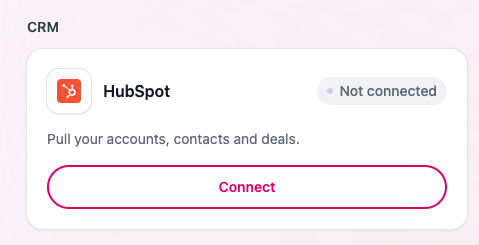
- In the CRM section, find the HubSpot card and click Connect.
- You are taken to HubSpot to review the access Alfred is requesting. Sign in to the HubSpot account you want to connect, then click Connect app.
- HubSpot returns you to Alfred. The connection is live for everyone in your workspace.
You can also install from the HubSpot App Marketplace listing. The install button starts the same flow and returns you to Alfred to finish.
After you connect
Alfred imports your open and recent deals once, then keeps itself current. New deals, stage changes, and newly logged emails, calls, and notes flow in automatically. Your reps see this context in their meeting prep, with no manual export.
Disconnect
- Sign in to Alfred as an admin.
- Go to Settings, then Integrations.
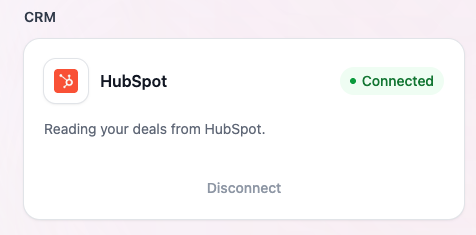
- In the CRM section, on the HubSpot card, click Disconnect and confirm.
Disconnecting stops all syncing. You can also uninstall Alfred from within HubSpot under Settings → Integrations → Connected Apps.
Support
Trouble connecting? Email product@teamalfred.ai and we will help.